

























Earlier than it feels necessary. The clearest signals: IT is spending significant time on password resets and manual provisioning, offboarding is taking too long, or enterprise deals are starting to include security questionnaires. Any one of those is reason enough.
How to Set Up Single Sign-On (SSO): Step-by-Step Guide
In this article
Key Takeaways
Single sign-on (SSO) lets users log in once to access all company applications, eliminating the need for separate credentials across an average of 112 SaaS tools per organization.
Stolen credentials remain the top breach vector, appearing in 22% of confirmed incidents per Verizon's 2025 DBIR, and SSO directly reduces that risk by consolidating passwords into one strong, centrally managed credential paired with MFA.
SSO setup follows seven steps: audit your apps, choose an identity provider, clean your user directory, connect applications via SAML or OIDC, enforce MFA, pilot with a small group, and monitor access logs on an ongoing basis.
Connecting your identity provider to HR data is critical because it automates onboarding and offboarding, ensuring access follows employment status rather than a manual checklist that can leave security gaps.
For enterprise sales, SSO is often a hard requirement on security questionnaires, so implementing it early removes a common deal blocker and shortens the sales cycle.
How to set up single sign-on (SSO) for your company
Most access problems don’t announce themselves. They build quietly, one tool at a time, until the overhead of managing them becomes the actual job.
On the employee side: a different login for every tool, passwords that get reused because there are too many to remember, and 15 minutes lost to a reset flow before the actual work starts. On the IT side: a manual offboarding checklist, applications revoked one by one, and a lingering question about whether anything got missed.
Neither of these problems is dramatic. That’s part of why they go unaddressed for so long. But they compound, and at some point the access environment gets messy enough that it starts showing up in the wrong places—a security review, a departing employee’s accounts that are still active two weeks later, an enterprise deal that stalls on a questionnaire.
SSO is the structural fix for all of it. One login, centrally managed, tied to who someone actually is in the organization.
In this guide, we’ll cover how SSO works, what the setup process looks like in practice, and what to think about to make sure it holds up as the company grows.
What is single sign-on (SSO)?
Single sign-on is an authentication method that lets users log in once and access all their applications without re-entering credentials for each one.
The most familiar example is Google. Sign into your Google account and you’re automatically in Gmail, Drive, and Calendar without a separate login for each. Same idea, applied across the full stack of tools a company uses every day.
How does SSO work?
Under the hood, SSO works through an identity provider. The identity provider is the central system that stores user identities and handles authentication. Popular examples include Rippling IT’s IAM, Microsoft Azure AD, Okta, and Google Workspace.
When a user tries to access an application, that application redirects them to that identity provider. The identity provider checks their credentials, issues a secure token confirming who they are, and sends them back to the application with access granted. For any other application they visit during the same session, that token is recognized and access is granted automatically. From the user’s perspective, they sign in once and everything just works.
Most SSO implementations run on one of two protocols: OIDC or SAML. SAML (Security Assertion Markup Language) is the standard for enterprise software and works well across web applications. OIDC (OpenID Connect) is more common for modern SaaS tools and is the protocol behind most “sign in with Google” flows. In practice, most environments use both—the protocol is usually dictated by the application, not a choice you make once and apply everywhere.
Why SSO matters for growing companies
SSO solves more than a login problem. Here’s what actually changes once it’s properly in place.
Reducing IT overhead
Managing access manually doesn’t scale. As headcount grows and the app stack expands, the volume of provisioning requests, password resets, and offboarding tasks grows with it. Research suggests organizations use an average of 112 SaaS apps—which means 112 sets of credentials to provision and eventually revoke for every person on the team. For a lean IT team, that’s a significant and compounding burden. Without a centralized system, most of that time gets spent on work that should be automated.
Strengthening your security posture
The security case for SSO is just as strong as the operational one. Verizon’s 2025 DBIR found that stolen credentials are still the most common initial access vector in breaches—present in 22% of confirmed incidents across more than 12,000 cases analyzed. The root cause is almost always the same: too many passwords across too many tools, which leads to weak or reused ones. SSO reduces that surface area by giving people one strong credential to manage. Paired with MFA, it creates a meaningfully harder target than the alternative.
Closing enterprise deals faster
Once enterprise deals start coming in, security questionnaires get more rigorous. SSO is one of those line items, and for a lot of buyers it’s a hard requirement rather than a preference. Without it, deals don’t die—they just slow down. Exceptions need to be escalated, security teams push back, and the vendor ends up defending a gap instead of closing a contract.
Faster onboarding and cleaner offboarding
Onboarding without SSO means someone has to manually provision a new hire into every application. It’s time-consuming and inconsistent—what gets provisioned depends on who’s doing it and how busy they are that day. Offboarding is the riskier side. Access has to be revoked one application at a time, and anything that gets missed is a live security gap. SSO connected to an accurate user directory changes both processes. Access follows employment status, not a checklist that depends on someone remembering to run it.
A better experience for employees
A 2024 study found that 56% of consumers abandoned an online service in a single month because they couldn’t remember a password. In a workplace, that plays out dozens of times a day across the whole team. The lost time adds up fast. SSO removes the friction entirely—one login that works across every connected app, from day one.
How to set up SSO: a step-by-step guide
SSO setup is more straightforward than most teams expect. The complexity usually comes from skipping steps, not from the steps themselves.
Step 1: Audit your applications and map access needs
Before touching any settings, get a clear picture of your environment. Which applications does the team actually use, which protocols do they support, and who needs access to what. A simple inventory grouped by role or department is enough to start. The goal isn’t perfection—it’s having enough clarity that you’re not discovering surprises mid-rollout. Application compatibility issues are much easier to deal with before you start than after.
Step 2: Choose an identity provider
With the app inventory done, you can make an informed choice about which identity provider fits. The main things to evaluate are protocol support, how broad the integration library is, and how cleanly it connects to your HR or people data. That last one matters more than it sounds. An IdP that’s disconnected from HR means manual syncing, and manual syncing means access that drifts. For companies already using Rippling for HR or IT, identity and access management is handled natively in the same platform, so that sync problem doesn’t exist.
Step 3: Clean up your user directory
The user directory is the foundation everything else is built on. If the data in it is messy—stale accounts, inconsistent email formats, naming conventions that nobody agreed on—everything you build on top of it will be messy too. Before connecting any applications: audit active accounts, remove inactive users, standardize email formats, and clean up naming. It’s unglamorous work, but it’s the step that prevents the most troubleshooting later.
Step 4: Connect your applications
With the directory clean and the IdP configured, start connecting applications one by one using the appropriate protocol. SAML for most enterprise tools, OIDC for modern SaaS. The application usually tells you which it supports. Start with the most business-critical applications and work outward. For apps that don’t support SSO natively, a password management layer can fill the gap—keeping credentials centralized and making sure they’re included in offboarding workflows even if they’re outside the SSO perimeter.
Step 5: Enable and enforce MFA
SSO consolidates access behind a single credential. That’s the whole point—and it’s also why MFA is not optional. Configure and enforce it before rollout, not after. Set requirements based on sensitivity. Admin accounts and high-risk systems warrant stronger authentication. Lower-risk tools can have lighter requirements. The goal is an authentication environment that’s not just more convenient than what it replaced, but genuinely more secure.
Step 6: Pilot with a small group before full rollout
Before rolling out to everyone, test with a small representative group across a range of applications and roles. Verify that login flows work correctly, tokens are being issued and validated as expected, and session behavior matches what was configured. This is also where you find out what you missed in Step 1. Better now than when the whole company is affected.
Step 7: Monitor and maintain
Getting SSO live isn’t the finish line. Access logs need regular review, policies need updating as roles and teams change, and the IdP needs to stay in sync with HR data as the company evolves. The centralized visibility SSO creates is only useful if someone is actually looking at it. Building a routine around access log reviews is what turns that visibility into an active security practice rather than a record that only gets checked after something goes wrong.
Common SSO implementation challenges
Even well-planned SSO rollouts run into the same set of problems. These are the ones that come up most often.
Misconfigured authentication
This is the most common technical issue, and it usually shows up as intermittent login failures that are hard to reproduce. The culprit is almost always a token setting, a certificate mismatch, or a protocol version mismatch between the IdP and the application. Thorough testing in the pilot phase and clear documentation of each app’s configuration is the most reliable way to catch these before they affect users.
Integration issues
Not every application plays nicely with every IdP, and older tools are often the stubborn ones. Some legacy systems don’t support modern federation protocols at all, which means workarounds—and workarounds introduce their own complexity. This is exactly why the Step 1 audit matters. Finding out mid-rollout that a critical application doesn’t support the protocol you’ve built around is a much bigger problem than finding out before you start.
User lifecycle management gaps
SSO handles authentication. It doesn’t automatically handle provisioning. If user accounts aren’t created and removed in sync with employment changes, access drifts. Someone gets promoted and still has their old permissions. A contractor wraps up and their login still works three weeks later. These gaps are quiet until they’re not. Connecting SSO to accurate, real-time HR data is what keeps them from becoming a security problem.
Shadow IT and unsanctioned apps
When employees can’t get the tools they need through official channels quickly enough, they find alternatives on their own. Those apps sit outside the SSO perimeter—no centralized visibility, no deprovisioning when someone leaves, credentials IT doesn’t know exist. The SSO coverage you think you have and the coverage you actually have are two different numbers. Understanding what tools people are actually using, not just the ones IT approved, is what closes that gap. That’s the shadow IT problem in practice.
Resistance to change from employees
New MFA requirements and changed login flows landing without warning is a reliable way to generate a wave of support tickets. Employees don’t resist SSO—they resist surprises. A proper pilot phase surfaces the confusion points early. Clear communication before rollout handles most of the rest. Getting SSO right technically is half the job. The other half is making sure people actually trust the new system enough to use it.
Integrate identity and device management into one security platform
SSO best practices
Running SSO well over time comes down to a handful of consistent habits. Beyond the setup steps, here’s what matters most.
Apply least privilege access
SSO makes it easy to give everyone access to everything because provisioning is no longer manual. That tendency is worth resisting. Access rules should reflect what each role actually needs—reviewed regularly as the organization evolves, and adjusted when someone changes roles rather than left to accumulate.
Review application coverage regularly
The app stack changes as the company grows. New tools get added, old ones get retired, and shadow IT fills the gaps in between. Periodic reviews of which applications are inside and outside the SSO perimeter ensure coverage stays complete and nothing slips through unprotected.
Test offboarding regularly
Most companies test onboarding thoroughly and treat offboarding as an afterthought. Running regular spot-checks that access is actually being revoked completely when someone leaves is one of the most effective ways to catch gaps before they show up somewhere worse.
Educate employees on security hygiene
SSO reduces password risk. It doesn’t eliminate human error. Employees who understand why MFA matters, what phishing attempts look like, and how to flag suspicious login activity are a meaningful layer of defense that no technical control fully replaces.
Document everything
Configuration details, protocol choices, integration setups, and access policies should all be documented and kept current. When something breaks or a new team member needs to manage the system, clear documentation is the difference between a quick fix and a long investigation.
Setting up SSO with Rippling IT
Most SSO problems trace back to the same root cause: the identity layer is separate from HR, so syncs lag, deprovisioning gets missed, and access policies drift out of alignment with who actually works at the company.
Rippling IT solves this by handling SSO within the same platform that manages HR, devices, and inventory, so access stays accurate automatically as the workforce changes—without someone manually keeping things in sync.
Here’s what that looks like in practice:
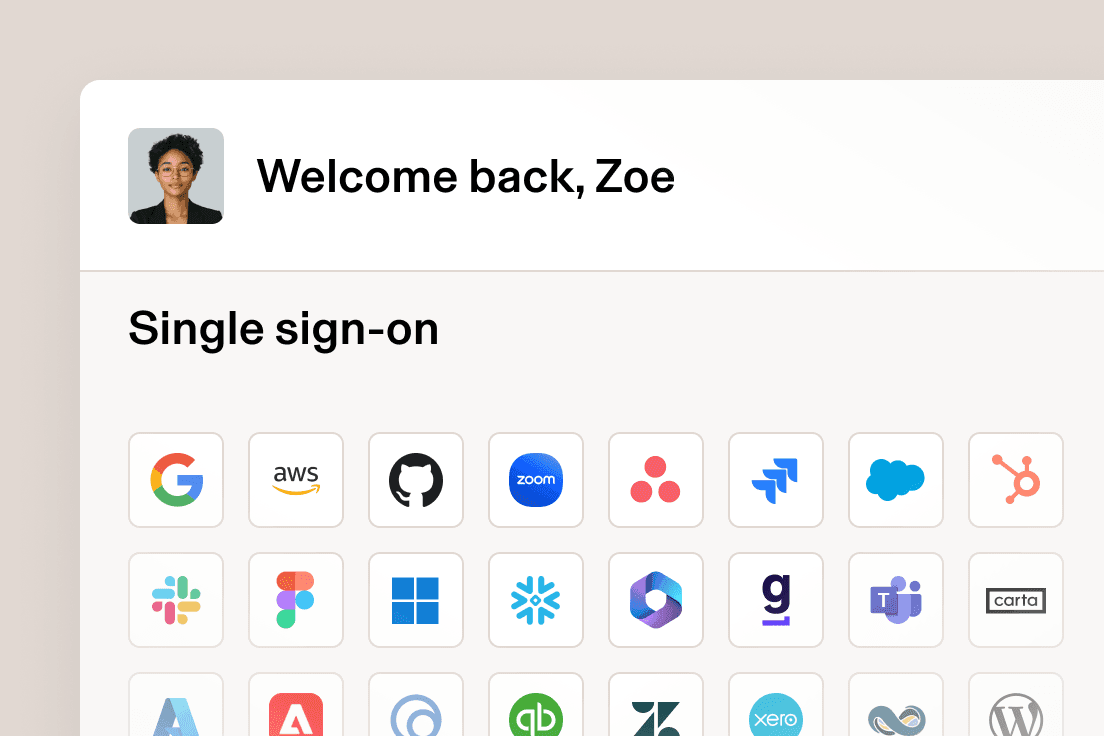
650+ pre-built app integrations: Rippling IT supports SSO for over 650 applications out of the box, plus custom SAML and SCIM for anything else. Employees get one-click access to every connected app from the Rippling dashboard from day one.
Bespoke MFA enforcement: Rather than a blanket MFA policy, Rippling IT lets you set different requirements by role, department, or any other employee attribute. High-risk roles or sensitive systems can require stronger authentication while keeping the experience straightforward for lower-risk access.
Automated provisioning and deprovisioning tied to employment status: When a new hire is added, app access is provisioned based on their role automatically. When they leave, access is revoked across every connected application at the same time—with no manual step that can be missed.
Dynamic access rules that update themselves: Rippling IT uses Supergroups—dynamic groups built on live employee attributes like department, role, and location—to keep access policies current without manual intervention.
Drift detection and one-click resolutions: Rippling IT continuously monitors for discrepancies between what access policies say and what is actually in place across connected apps. When something does not line up, it surfaces the issue and lets IT fix it in one click.
Device-linked access control: Rippling IT connects identity directly to device compliance. If a device is not encrypted or patched, access to sensitive applications is automatically blocked until it meets policy.
RPass for non-SSO apps: For applications that do not support SSO natively, Rippling’s built-in password manager RPass stores and manages credentials securely, connects them to the employee record, and includes them in offboarding workflows so access is revoked even for tools outside the SSO perimeter.
For IT teams that have spent time managing access across disconnected systems, this is a different way of working. The rules get set once, the employee data keeps them current, and the gaps that used to require constant attention mostly take care of themselves.
Frequently asked questions
When should a company implement SSO?
What is the difference between SAML and OAuth?
SAML is an authentication protocol used primarily for enterprise web applications. OAuth is an authorization protocol that governs what an application can do on a user’s behalf. OpenID Connect builds on OAuth and adds the authentication layer, making it the more complete option for modern SaaS environments.
Is SSO secure?
Yes, when properly implemented. SSO reduces the attack surface by eliminating the weak and reused passwords that come with managing multiple credentials. The tradeoff is that a compromised SSO credential has broader access than a single application password—which is exactly why MFA isn’t optional alongside it.
Can SSO integrate with all apps?
Most modern SaaS applications support SSO through SAML or OIDC. Some legacy applications do not and need a workaround such as a password manager that connects credentials to the employee record and includes them in provisioning workflows.
What is the difference between SSO and a password manager?
A password manager stores and autofills credentials for individual applications, but each one still has its own separate login. SSO replaces all of that with a single authentication event. Log in once and access to every connected application is granted automatically.
They’re complementary, not competing. Most environments need both: SSO for the apps that support it, and a password manager for the ones that don’t. Rippling IT handles both in the same place.
See firsthand how Rippling IT can transform your IAM strategy
Disclaimer
Rippling and its affiliates do not provide tax, accounting, or legal advice. This material has been prepared for informational purposes only, and is not intended to provide or be relied on for tax, accounting, or legal advice. You should consult your own tax, accounting, and legal advisors before engaging in any related activities or transactions.

Author

Michael Hendricks
Head of IT Content
Michael Hendricks is an award-winning writer and editor with over a decade of experience shaping compelling narratives across newsrooms, non-profits, and digital media organizations. With a background that bridges journalism and strategic communications, he brings a keen editorial eye and a sharp understanding of how to translate complex information into stories that connect. Michael currently leads content for Rippling IT, where he manages editorial strategy and content. Previously, he’s worked with outlets such as CNN and Search Party, where he produced and edited stories ranging from geopolitics and public policy to global markets and the business of sports with nuance and care.
See Rippling in action
Increase savings, automate busy work, and make better decisions by managing HR, IT, and Finance in one place.